
The TwoNav interface is designed to provide quick access to the main functions and support your exploration needs in a convenient and simple way. Knowing the interface elements will allow you to use the software more smoothly and efficiently.
Interface without starting navigation
By default, as soon as you start TwoNav, you will see the non-navigation view. This view is displayed before starting an activity and after finishing it, that is, only when there is no active navigation. These are the most important elements of its interface:
- Status bar: Located at the top of TwoNav, it shows the current status of some of the most basic TwoNav functions: time, GPS signal, sensors, activity recording, sport profile, battery level... If you tap on it, you will see the full list of functions.
- Map window: Central area where maps, tracks, routes, and waypoints are displayed. Use your fingers to move the map and explore nearby areas.
- Recenter button: While exploring the area, if you move the map away from your current position, tap it so TwoNav quickly centers the map window on your current location.
- Scale: Shows the zoom level currently applied to the map.
- Main menu: Located at the bottom left of the application, it provides access to the lists of activities, routes, waypoints, and maps. From the main menu you can also manage most of the system’s advanced settings.
- Start button: Located at the bottom center of the application. Tap it to start your activity. You will need to select the type of activity you want to navigate (follow a route, go to a specific place, train, or perform a free activity). From this moment on, TwoNav will record a track with all your movements.
- More options: Located at the bottom right of the application, it provides access to additional functions of the selected element or the menu you are in. These options are not visible at first glance on the screen; the user must open the contextual menu to access them.
Additional functions
If you tap anywhere on the map, TwoNav will show more functions:
- Toolbar: Located at the top, just below the status bar, it allows quick access to functions such as:
- Create waypoint
- 2D/3D/3D+ view
- Map orientation
- Switch map
- Weather forecast (only available in the TwoNav app)
- Zoom buttons: Tap them to zoom in or out on the map.
- Full screen button: Tap it if you want more space to view the map. The other interface elements will be hidden. Tap the button again to return to the previous state.
To hide these functions, tap the map again.
Interface during navigation
When you start navigation (tap the 'Start' button and select your activity), the TwoNav interface changes slightly: the previous elements are hidden and TwoNav only shows your location and the track you are recording. These are the most important elements of its interface:
- Data bar: Located at the bottom of the application, it shows relevant information about your performance in real time. Tap the bar to access data pages with more live information.
- Information panels: Depending on the type of activity you perform (for example, on-road navigation or roadbook navigation), the map window may include the following elements:
- Next event: Information related to the next position (direction and distance). The direction arrow shows the direction of the next section of the route.

- Next info: Notes and maneuvers about upcoming events on the itinerary.
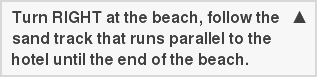
- Next event: Information related to the next position (direction and distance). The direction arrow shows the direction of the next section of the route.
Additional functions
During navigation, if you tap anywhere on the map, TwoNav will show more functions:
- Activity control: Located at the bottom center of the application and, during navigation, it replaces the 'Start' button. By tapping this button you can pause or stop your activity and choose another destination if necessary.
To hide these functions, tap the map again.
Comments
0 comments
Article is closed for comments.