Cartes et Data dans Application TwoNav sous Android

Bonjour
Selon la page ci-dessous les cartes et data dans l'application sont accessibles comme suit :
https://support.twonav.com/hc/fr/articles/4402554776338-Utilisation-des-dossiers-dans-TwoNav-Android
Testé sur Android 15 et 16, il semble s'agir d'un problème de protection de l'application
De fait il n'est pas possible d'accéder aux données contenues dans le répertoire TwoNavData.
Pourriez vous svp fournir une explication ?
Je vous en remercie par avance
Cordialement
Christian BADEUIL
-

Bonsoir,
En préambule, ICI c'est un forum d'utilisateurs, TwoNav y publie des tutos mais ne répond pas aux questions pour contacter le SAV il y a le lien envoyer une demande en haut a droite
C'est un sujet qui revient de manière récurrente.
De mon expérience récente (Audroide 16), confirmée par TwoNav SAV ça dépend du fabricant du SmartPhone (la surcouche androide)
Les cartes et data sont installées dans un dossier "invisible" sauf si tu a les outils ad'hoc pour y accéder.
Deux solutions:
Soit renommer :
/files/TwoNavData/Data en /files/Old_TwoNavData => ce qui va rendre le TwoNavData inaccessible sans le perdre
puis
- créer un nouveau /files/TwoNavData sous file (donc un clone)
- Créer les mêmes sous répertoires /data, /Map , etc
- Copier les donnée des anciens (old) data et map dans le nouveau
(Important il faut bien re creer ces dossiers le petit malin qui imagine faire un copier / coller sera en échec car il copie aussi les droits associés à ces dossiers)
Cette solution fonctionne (Sauf chez certains utilisateur va savoir pourquoi? )
Sinon si cette solution ne fonctionne pas, pas de panique, si tu souhaite envoyer des données ou cartes a l'APP via le câble USB tu les placent dans /file (ou téléchargement si tu utilise internet)
Tu ouvre l'APP et tu va chercher la carte dans /file (ou téléchargement) et avec l'APP quand elle te demande tu répond OUI a enregistrer et cette carte va se ranger dans le bon dossier (invisible), ou forcer l'enregistrement.
Normalement le seul besoin qui subsiste c'est pour faire passer des cartes perso, ce qui s'amenuise avec le panel de cartes gratuites.
Pour les Cartes achetées il suffit (il faut sinon la clé ne suivra pas) de passer par le menu /carte puis installer cartes achetées et ca se charge via internet.
Pour les donnée (Routes, Traces, WPT, etc..) il suffit de synchroniser via Land ou via la page GoCloud et ca passe par internet;
Ou menu ROUTE et en bas a droite (3 tits points) /mes routes en lignes et tu va les chercher (même si non synchroniser ont accède atout ce qui est dans /data du PC) sur le GoCloud ou le Cloud d'un partenaire si ce partenaire a été lié via la page GO Cloud (ton compte).
En toute logique passer par le câble sur un SmartPhone le besoin n'existe plus, sauf cartes perso.
CDLT
-

Forget the Twonav App. It is not working properly. For over half a year now they are unable to show the fonts of wpt/bwpt items properly but instead of repairing those crucial faults they are concentrating on silly online map sharing/uploading stuff as if that matters if crucial functions are not working.
-
Non, les bibliothèques d'icônes sont identiques.
Just one exemple :
WPT 08 Icon Name MOB
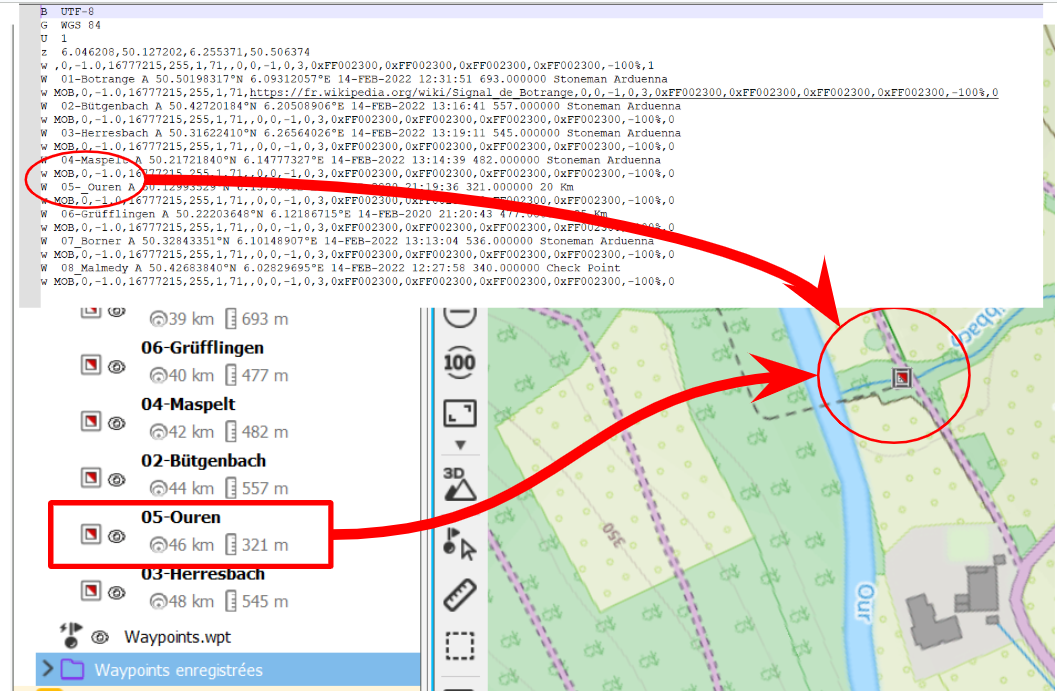
MOB icon come from Icons DEFAUlT library
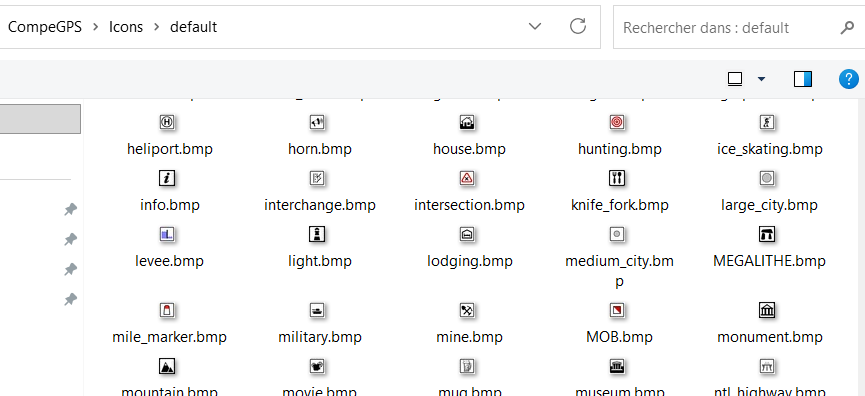
Send this file to APP
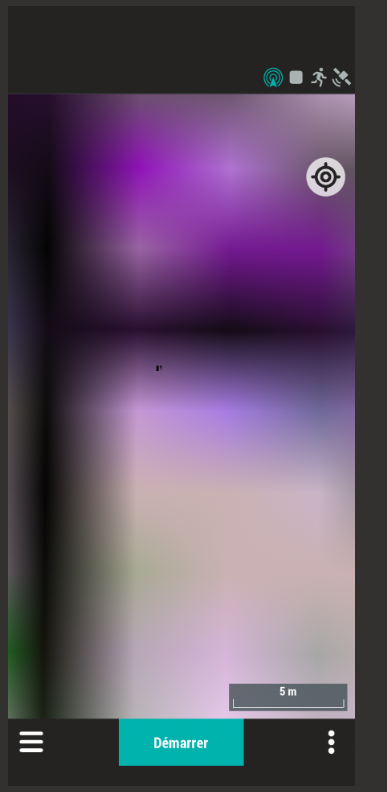
Nothing on the screen ZOOM +++++ but nothing
Default Library is not in the APP
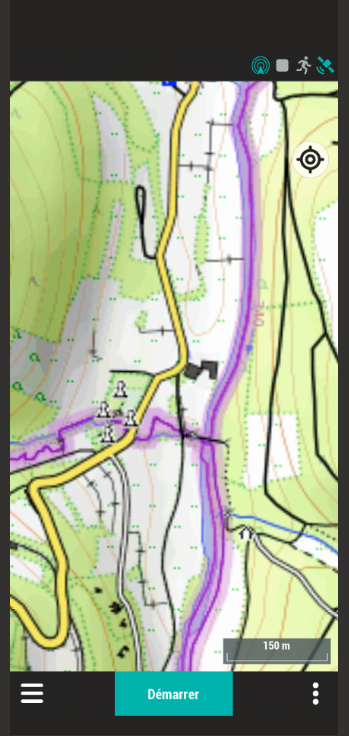
..Same issue with library navigation & navigation new...
Cdlt
-
Steps to see the waypoint icon and to prove that it exists in the app:
0) Open the app.
1) Close the wpt file where the mob icon isn't shown.
2) In the default wpt file (mine is called waypoints.wpt and is marked as active) view the properties of one wpt, doesn't matter which one.
3) In the field of the symbol library (it is hidden in the submenu General) change the symbol library to another one, it doesn't matter which one.
4) Go back and open the wpt file where the mob icon previously was not shown
5) Dance a happy dance since now the mob icon is shown and curse Compe for their lax attitude to resolve this frilling problem.
-
Hello,
You are not addressing the issue described.
The default WPT configuration file is designed to assign characteristics to a WPT:
- When these characteristics are undefined in the imported file, such as during the creation of a new WPT.
- In the case described, the WPTs in the imported file have a well-defined icon named MOB. If this icon were part of an app library, it should have appeared, but it doesn't.
Logically, reconfiguring the default configuration file should not resolve this issue, or if it does, it will assign the default icon to the WPT, which is not the intended purpose. The icon is indeed defined in the imported file.
Furthermore, if you look closely, in the default configuration file created during the app's installation, you will find some of the settings configured in Land.
This file is therefore imported via GoCloud or your account, but it's incomplete.
To continue, we must not have the same version of the app because I only see one icon set offered in the default WPT settings. MOB isn't there because MOB is in a library named "default" (since Land 7 or earlier), and this library isn't accessible via the TwoNav 6 app.
In fact, on this point, things are quite chaotic in the TwoNav ecosystem, because for successive versions of Land, some icons disappear because the library containing them is no longer included. The solution is to retrieve this library from an older version and then add it to the Land program space. But the best solution is to modify the settings so that Land (and the same applies to GPS devices) points to the libraries in the data space, since the user has control over this space.
This operation isn't trivial; moving the files themselves is simple, but configuring Land is more delicate because some lines in the configuration files are broken. You have to modify the active line, but there are two.
I mentioned the icon, but in practice, it's not just the icon management that's chaotic; other settings are poorly managed.
I'd be interested to see where the default icon library (and others in the app) is located.
These problems have been reported to TwoNav for several months and are being raised regularly again. Perhaps one day...
It seems to me that in the update mechanism, some things are duplicated, and it ends up creating a kind of mess.
The same type of problem exists in the files used for automatic route creation (this problem existed on Hypermaps and has just been fixed). These files are created using paths from the device's memory. Imagine what happens to Android paths in a GPS: it results in blank pages with a paperclip. Or Land crashes, with Land desperately trying to detect errors in files within Android's memory... Nothing unusual, they don't exist on a PC, but Land was indeed coded to trace Android file errors!
When you see this in a log file, you're happy it's working; the house of cards can collapse.
Where is MOB ?
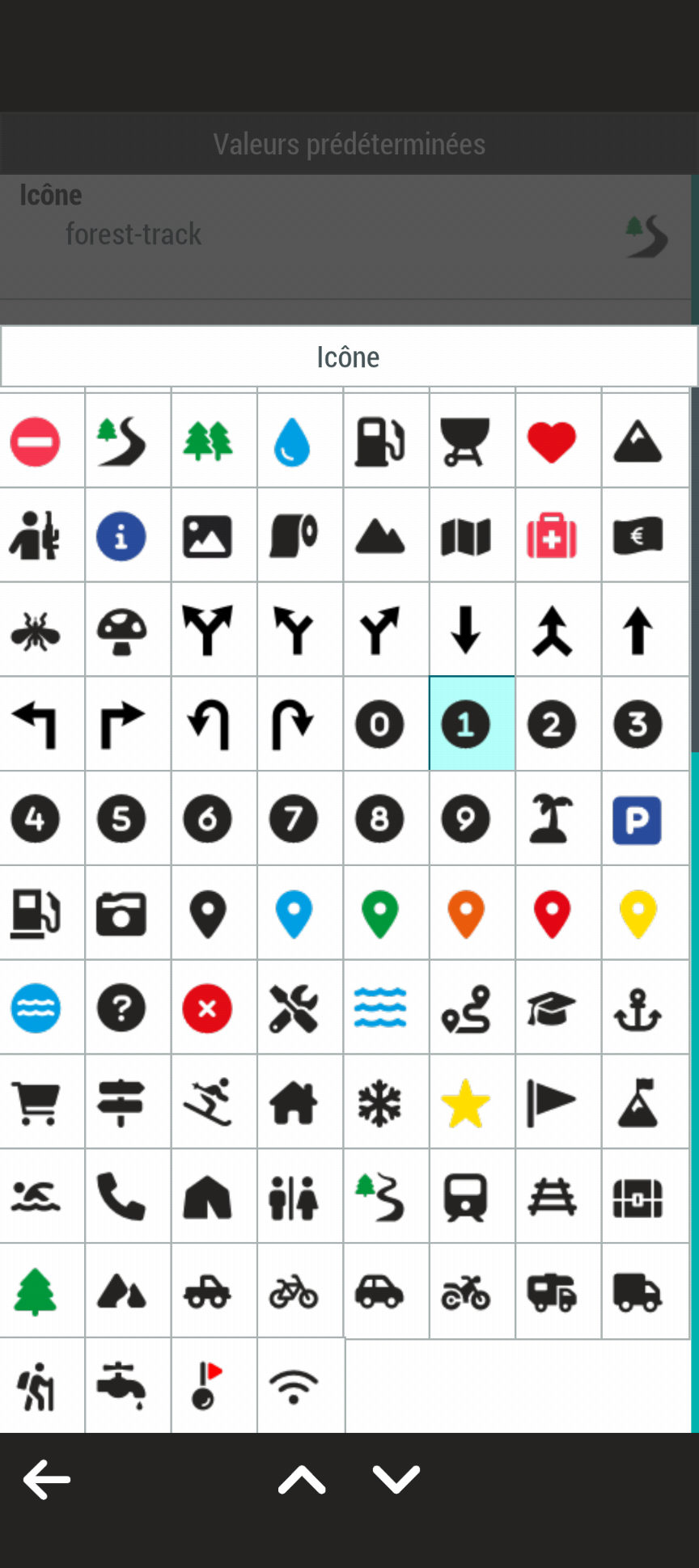
Land & GPS Icons Library (One more, Land Icons is my Own Library)
I can't find this option in the app.
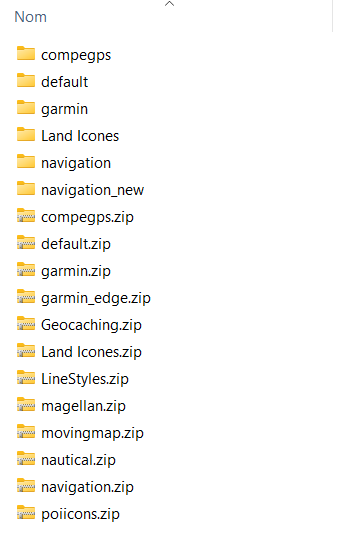
I contacted TwoNav to report that some libraries weren't accessible from Land, but they found nothing wrong.
Specifically, there are two sets of libraries:
- C:\Program Files\TwoNav Land 1054\symbols
- C:\Users\...\Documents\CompeGPS\Icons
And in C:\ProgramData\TwoNav Land, there's a gps.ini file:
- IconosBalizas_Tot_2=C:\Users\...\Documents\CompeGPS\Icons\Land Icones
- IconosBalizas_Combo_2=default.zip
Land doesn't respect these guidelines; it must be hard-coded.
The two sets of libraries need to be modified to be identical to avoid further problems.
As in the app, access is limited, short of shedding tears...
Best regards
-
It seems you didn't understand me. I was talking about the properties of a SPECIFIC waypoint. In the General section you can select the Icon library and you can find the MOB icon via this setting in the app. This has nothing to do with sync and the default.wpt file which will be synced between devices!
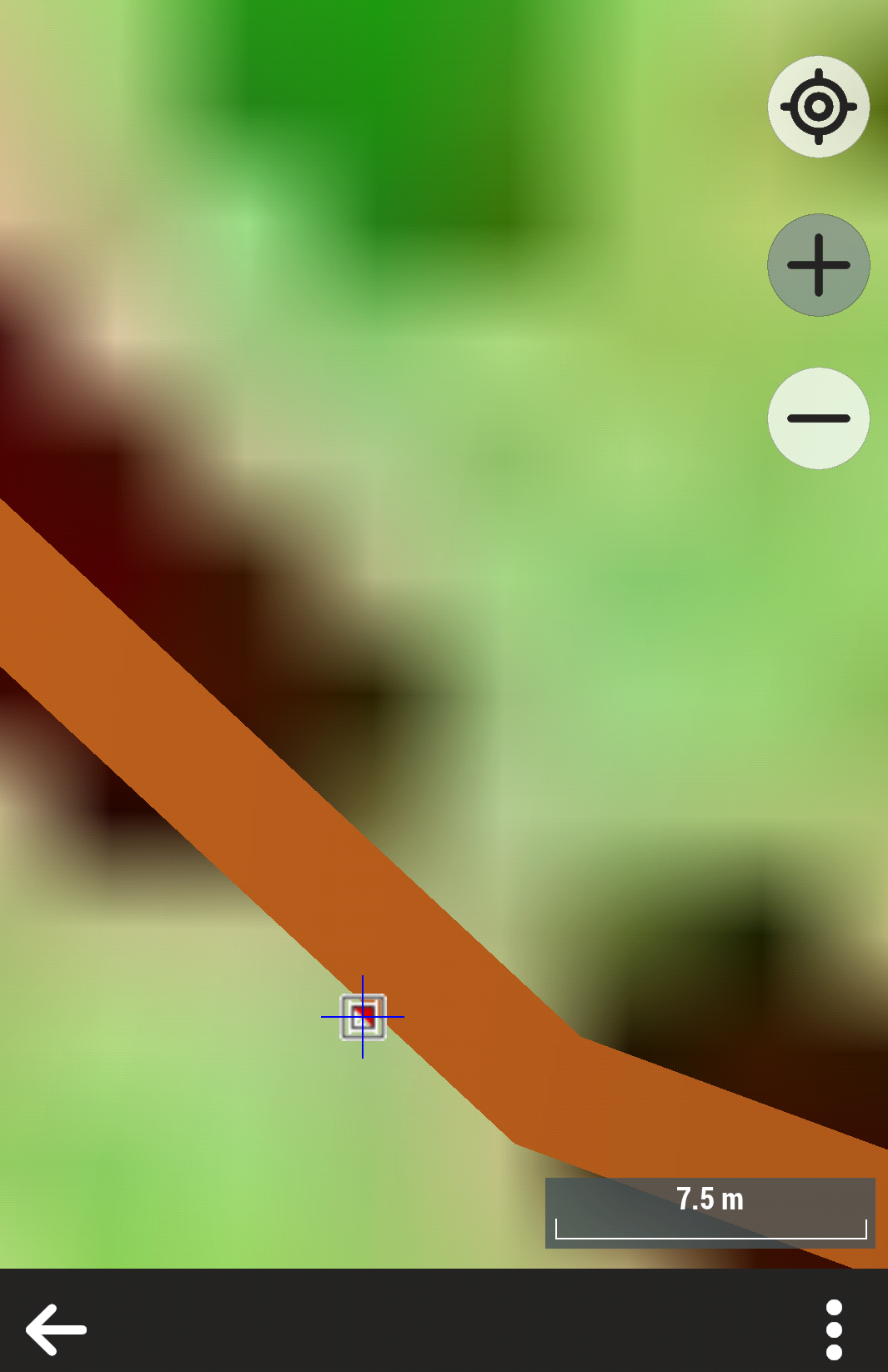
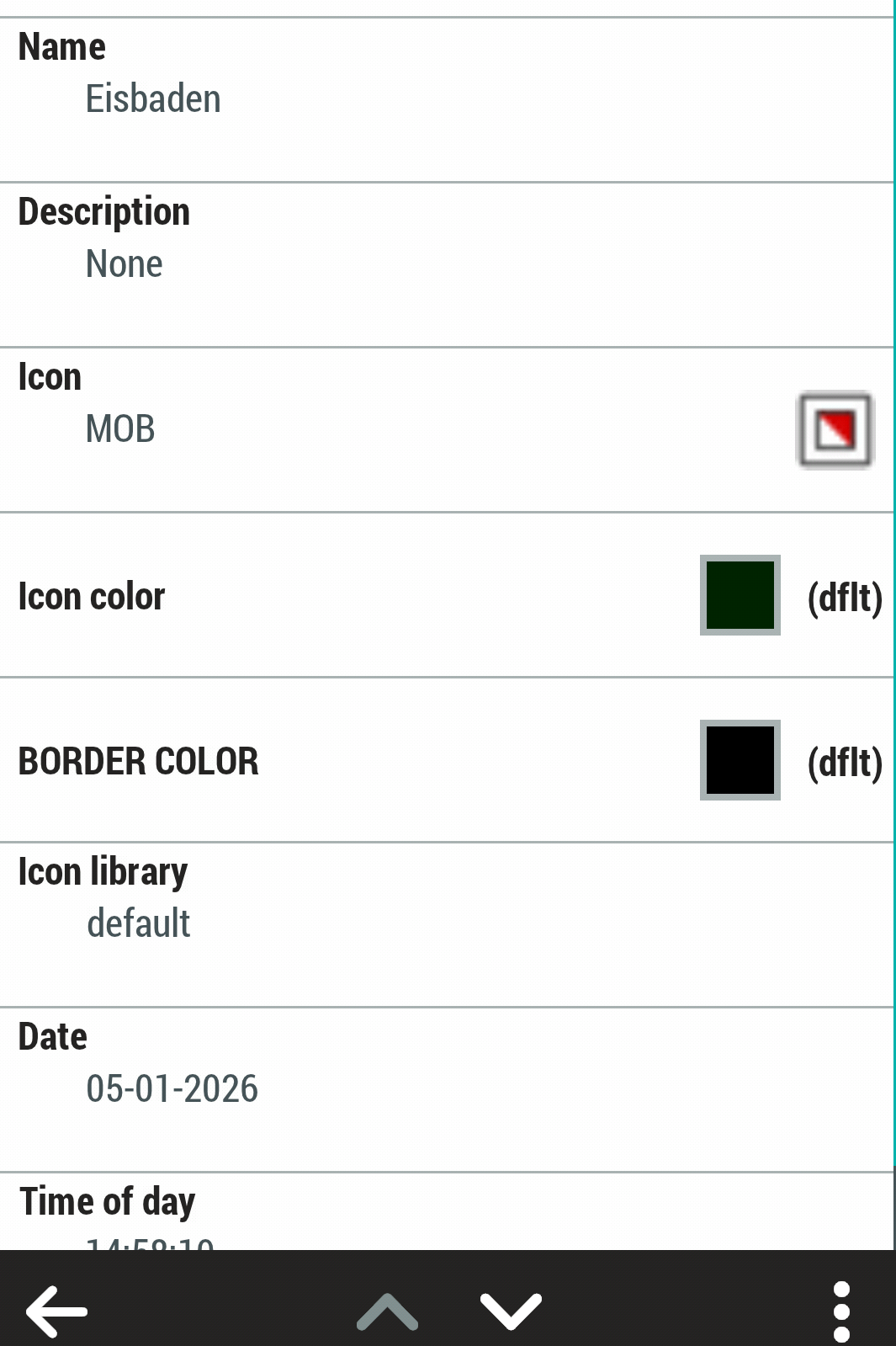
-
Vous avez écrit ceci!
2) Dans le fichier wpt par défaut, consultez les propriétés d'un seul fichier wpt, peu importer lequel.
3) Dans le domaine de la bibliothèque de symboles, changez la bibliothèque de symboles pour une autre, peu importe laquelle.
Comme indiqué précédemment :
- Dans le principe si j'importe un fichier de WPT conçu dans l'éco système TwoNav ce n'est pas pour devoir changer tous les icones un par un dans l'APP, si ce fichier est exporté versl'APP (GoCloud)
- Si je créer un WPT avec l'application, je n'ai que la librairie indiquée image tout en bas il n'y pas l'icone MOB (Chez vous c'est possible)
- Sur un WPT édité la possibilité de changer de bibliothèque d'icone n'existe pas (Chez moi, chez vous peut être)!
Je peux mettre une icone Papier de Toilette qui n'existe pas dans Land
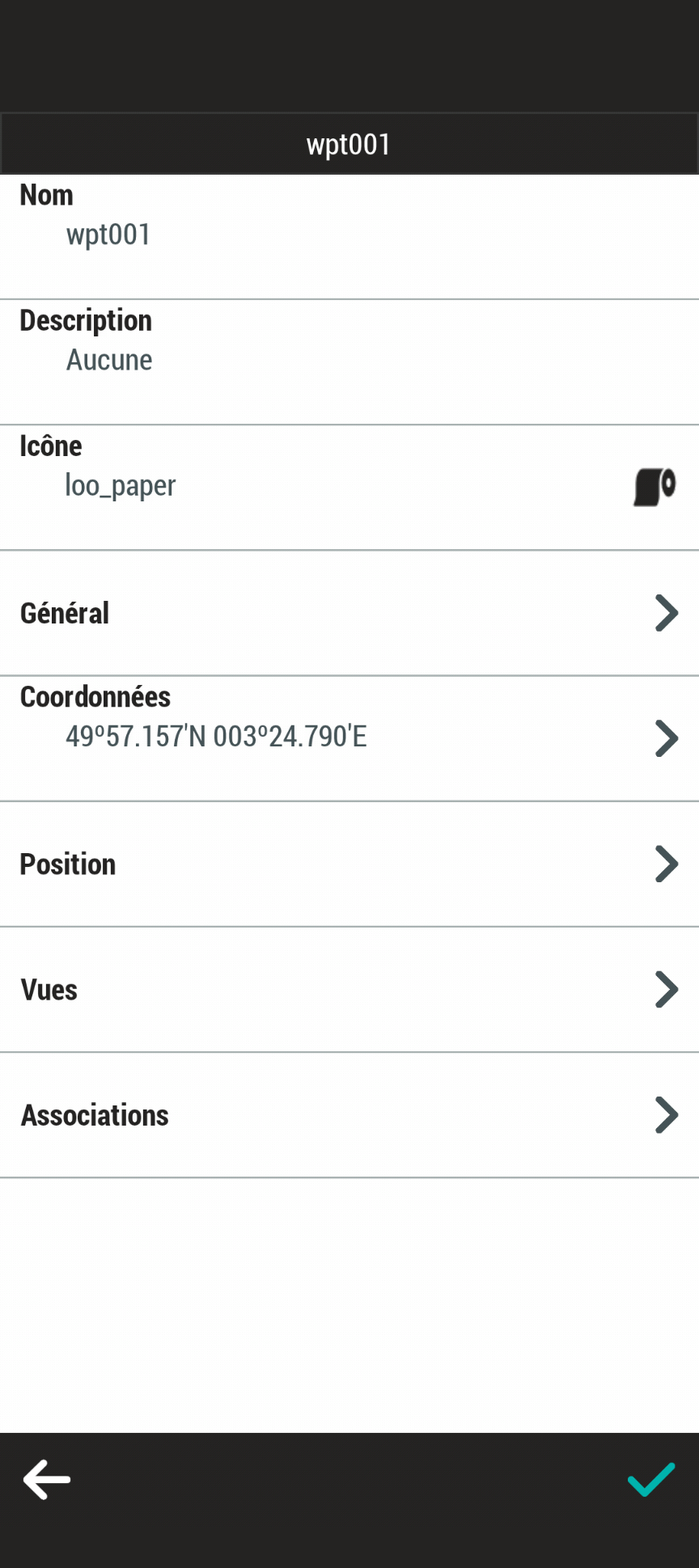
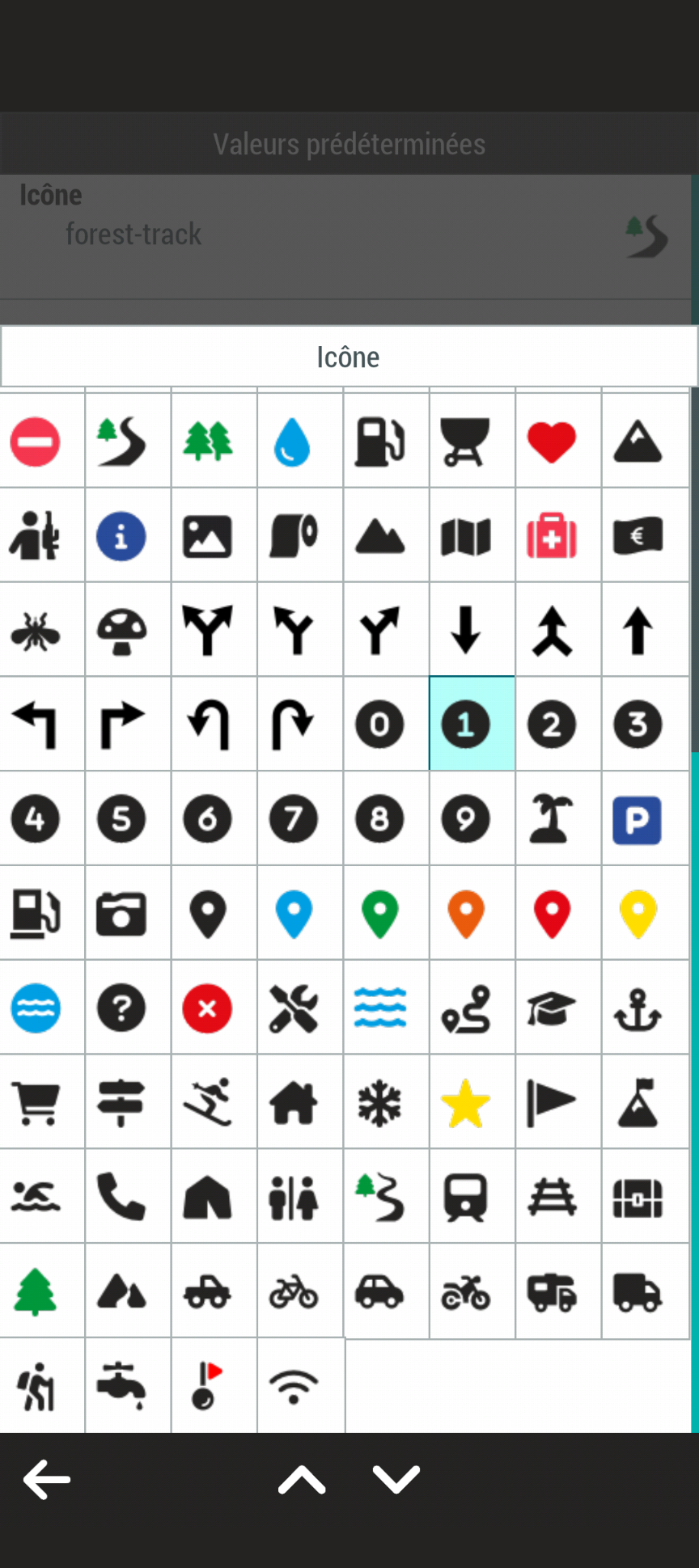
Je peux effectivement modifier l'icone d'un WPT par défaut mais ca ne solutionne pas le problème, il faut reprendre un par un les WPTs pour lesquels l'icone n'est pas connu de l'application.
Le problème se situe au niveau de ce que je vous ai indiqué:
- Nous n'avons pas la même configuration,
- C'est lié a l'installation et aux librairies qui sont installées ou oublies
Ce problème existe aussi avec Land dans une moindre mesure mais c'est plus facile de s'en sortir.
Ce même problème existe avec un Road Book..
CDLT
-
Actually, you have the loo_paper.png in Land, it is in the compegps.zip icon file. I didn't test how to assign it via Land though.
What I wrote is happening only in the App. The devices are searching all the Icon libraries just fine and showing them. As I wrote before, it has nothing to do with the default.wpt or the settings in the App. It is just a programming mistake preventing the App to search all the libraries.
If you go into the properties of your waypoint with the loo_paper icon (the second picture up) - you'll find the icons library settings under Général which is stupid but thats the way they programmed it.
Nethertheless changing the icon library on one specific waypoint does force the App to search through all the libraries and all icons in the waypoints are shown on the map and in the waypoint list but only for this session and only for waypoint files that are opened after doing it.
Please sign in to leave a comment.
Comments
11 comments